mcpro24fps demo - video camera
Chantal Pro SIALibraries & Demo
4.311.00 Reviews
- Version
- 044di-demo
- Installs
- 1.00M
- Age Rating
- Everyone
Screenshots
Our Review of mcpro24fps demo - video camera
 Analysis by Appyee
I approached mcpro24fps demo as someone who wanted more control over phone video without immediately committing to a full professional camera setup. It is a free demo app in the Libraries & Demo section, developed by Chantal Pro SIA, and its purpose is straightforward: let you try the manual-camera experience associated with mcpro24fps before deciding whether the complete version fits your workflow.
That distinction matters from the first tap. This is not simply another point-and-shoot camera replacement, nor is it mainly a gallery, editor, or social-video tool. Its value is in the shooting stage, where a person may want to make deliberate choices instead of letting the phone decide everything automatically. I found the demo most interesting when I treated it as a test bench: could I frame a shot, control the process more intentionally, and understand whether a manual video camera suits the way I actually record?
From an ordinary phone camera to a more deliberate video workflow
My starting condition was familiar. A phone’s standard camera is convenient, but convenience can become frustrating when lighting changes, a subject moves between bright and dark areas, or the automatic image keeps adjusting while I am trying to record a steady-looking clip. The usual camera app is excellent for speed. It is less satisfying when I want the visual decisions to stay consistent from the beginning of a shot to the end.
The demo version is aimed at that gap. I would not install it expecting an editing suite or a collection of ready-made effects. I would install it because I want to investigate whether manual video capture feels useful on my own device. That makes the app especially relevant to people recording interviews, product demonstrations, travel footage, short films, lessons, or carefully composed clips where consistency matters more than pressing one button and moving on.
There is also a practical psychological benefit to using a demo. A manual camera can look appealing in theory and still be inconvenient in real life. The free entry point makes it possible to test the handling before reorganizing a whole recording routine around it. I can check whether the controls make sense to me, whether my phone is comfortable to operate while recording, and whether the extra attention improves the final material enough to justify moving beyond the trial experience.
The app is suitable for Everyone, and it runs on Android devices using version 7.0 or later. That broad compatibility makes the experiment accessible to people with older phones, although compatibility with an operating system is not the same thing as identical camera behavior across every device. Phone hardware, camera drivers, lenses, and available controls can all affect what a manual camera can practically do.
Preparing before pressing record
I would begin with a simple scene rather than an ambitious project. A desk near a window, a person sitting still, or an object with both light and shadow gives me enough variation to notice how the camera behaves. Starting with a controlled subject is more useful than testing during a fast-moving event, because I can separate my own learning curve from the app’s handling.
Before recording anything important, I would also decide what the clip needs to become later. If it is going straight to a message, speed may matter more than detailed control. If it will be cut with other footage, stable-looking exposure and a repeatable shooting approach become more valuable. This is one of the less obvious trade-offs with a manual camera: the benefit is not merely having more buttons, but accepting responsibility for choices that an automatic camera normally hides.
A useful first exercise is to record the same subject more than once while changing only one decision at a time. I would avoid changing framing, movement, and lighting simultaneously. That makes it easier to tell whether a more controlled approach is actually helping. It also prevents the common mistake of blaming the app when the real problem is that too many variables were changed during the test.
Moving through the shooting process
Once the scene is ready, the workflow becomes a sequence of observation, adjustment, recording, and review. I would first compose the shot and watch the brightest and darkest areas. Then I would decide whether the automatic result already looks acceptable. If it does, the demo has still served a purpose: it has shown me that I may not need a manual workflow for that particular scene.
When the automatic result is inconsistent, the manual approach becomes more compelling. The important habit is to make the adjustment before the action begins, not while an important moment is already happening. For example, if I am recording a person moving from a shaded doorway into daylight, I would prepare for that transition in advance rather than trying to rescue the image after the subject has crossed the frame.
This is where the app’s identity as a manual video camera becomes meaningful. It encourages me to think about the shot as a small production rather than an isolated tap. I need to consider the light, the movement, the background, and the intended handoff to whoever will watch or edit the result. The demo is useful when I enjoy that process; it is less attractive when I simply want the phone to make every decision for me.
For a realistic everyday scenario, imagine recording a short cooking demonstration in a kitchen. The presenter may move between a bright counter and a darker preparation area, while reflective surfaces make automatic adjustments distracting. I would frame the counter, test the brightest part of the scene, and record a short sample before filming the full explanation. That sample is not wasted time: it reveals whether the chosen setup remains comfortable and whether the visual result is steady enough for the person who will later trim and publish it.
Another useful scenario is a small interview. I would place the phone, check the background, and make a short test while the speaker sits in position. The key advantage of a controlled camera workflow is repeatability. If the interview is interrupted, I want the next clip to resemble the first one as closely as possible. The limitation is equally clear: someone must pay attention to the setup, and that person may be the speaker, the camera operator, or both.
The handoff from capture to editing or sharing
The camera is only the first handoff. After recording, the clips usually move to a phone editor, a desktop application, a cloud service, or a messaging platform. A manual shooting app cannot remove the practical demands of that next stage. I still need to identify the useful takes, trim unwanted material, check the sound, and choose an export or sharing route that matches the final destination.
This is where I would keep the workflow deliberately simple. I would record short tests before a long session, review them immediately, and label or organize the successful clips while I still remember what each one contains. That habit is especially valuable when using a manual camera because the footage may be part of a more considered plan rather than a single spontaneous snapshot.
The handoff also changes depending on who receives the footage. If I am sending a clip directly to a friend, the standard phone workflow may be faster. If I am giving material to an editor, consistency between takes matters more, and I would rather spend time preparing the camera correctly than discover later that matching clips is difficult. For a creator working alone, the demo can therefore be useful as a front-end test, even if another app handles all later editing.
I would not treat the demo as a replacement for a dedicated editor. Its role is earlier in the chain. That separation is helpful because it keeps expectations realistic: the app can influence how footage is captured, but it does not turn an unplanned recording into a finished production by itself. The quality of the handoff depends on planning, file management, sound, lighting, and the limitations of the receiving platform.
What the trial can tell you about the full experience
The most valuable outcome of a demo is not a single impressive clip. It is a clearer answer to the question, “Will I actually use manual controls?” I would judge the app after several ordinary recording attempts, not after one carefully staged scene. If I repeatedly notice that automatic exposure or other phone decisions are getting in the way, the demo has shown me a genuine need. If I keep ignoring the controls because speed matters more, the full version is probably not the right direction for me.
The app has a 4.3 average from around 3.1 thousand ratings, and it has passed one million installs. Those figures suggest that the concept has attracted a substantial audience, but they do not decide whether it belongs in my personal workflow. A manual camera can be well regarded and still feel excessive for someone whose priority is quick clips, casual memories, or instant social sharing.
I also appreciate that the current version is identified as 043dd-demo. That makes it clear I am dealing with a trial-oriented build rather than assuming I have the complete product. The store summary openly positions it as a way to try the manual camera and then buy the full version. In practical terms, I would use the demo to evaluate the handling and the shooting philosophy, while remembering that the trial experience is not the same as owning every capability of the complete app.
That distinction answers an important question for anyone downloading it: is the demo useful if I only want free video recording? Yes, but mainly as an evaluation tool. If my goal is a permanent, no-cost replacement for a standard camera with a broad editing toolkit, I should look elsewhere or stay with the phone’s built-in option. The demo makes more sense when I am considering a more controlled camera workflow and want to decide whether it is worth pursuing.
Where the workflow becomes demanding
The first point of friction is attention. Manual recording is slower because I have to observe the scene and make decisions. That is not a defect in the same way a crash would be; it is the cost of control. Still, it becomes a genuine weakness when the subject is unpredictable. A child running through a room, a sudden street moment, or a fast event may be gone before I finish preparing the shot.
The second issue is device dependence. Android cameras are not identical, so the experience can vary with the phone’s hardware and software. A device may meet the minimum operating-system requirement and still provide a different practical experience from another model. I would therefore test the actual phone I plan to use, including the lens I expect to rely on, rather than assuming that another person’s results will transfer directly.
The third issue is the learning curve. A person new to manual video may initially produce worse footage because the controls create more opportunities for mistakes. That is why I recommend short test clips and repeatable scenes before recording something that cannot be recreated. The demo is forgiving in one important sense: it lets me discover whether I enjoy learning this way without paying at the starting point. It does not remove the need to learn.
There is also a workflow cost after capture. More deliberate footage often invites more deliberate editing. I may spend longer selecting takes, matching scenes, and checking whether the visual decisions remain consistent. That can be worthwhile for a project with a clear purpose, but it is unnecessary overhead for a quick clip that will be watched once and forgotten.
Who should install it, and who should skip it
I would recommend trying the demo to a phone filmmaker who is frustrated by automatic changes, a student exploring camera technique, a small business owner making repeatable product videos, or anyone deciding whether a manual recording app deserves a place in a regular setup. It is also a sensible option for a curious user who wants to compare a controlled camera workflow with the familiar built-in camera before spending money on a full version.
I would be more cautious about recommending it to someone who wants instant results with no setup. If the main requirement is “open the camera, press record, and share,” the default camera is likely a better fit. The same is true for a user primarily seeking filters, transitions, captions, or automatic social-media templates. Those needs belong later in the production chain, while this demo is focused on the act of recording.
For me, the strongest reason to keep it installed temporarily is diagnostic. It helps reveal whether my video problems come from a lack of control or from other parts of the process, such as poor lighting, weak audio, shaky support, or unclear framing. Manual controls cannot fix every production issue. In some situations, a small tripod, an external microphone, or better positioning would improve the result more than changing camera software.
My practical recommendation is to run a three-part test: record a static indoor subject, record a scene with a noticeable change in light, and record a short moving subject. Review each clip on the same screen and ask whether the extra control produced a visible improvement that matters to me. Then repeat the test using the ordinary camera. This comparison is more useful than judging the demo by its interface alone.
My verdict after following the complete workflow
mcpro24fps demo is best understood as a decision-making tool for serious phone video, not as a universal camera replacement. Its free access removes the biggest barrier to experimenting, and the Everyone rating plus Android 7.0 minimum make it approachable for a wide range of users. Chantal Pro SIA has presented it as a route into the manual mcpro24fps experience, and that focus gives the app a clear place in the camera category.
I like the way it encourages a complete chain of thought: prepare the scene, capture with intention, hand the footage to the next tool, and judge the result rather than the number of controls. The strongest benefit appears when I need consistency across takes or want to understand exactly how a shot is being made. The main drawback is that this benefit demands time, attention, and a willingness to learn.
Because it is free, I see little reason not to test it if manual video interests you and your Android phone meets the operating-system requirement. I would approach it with a specific scene and a clear comparison against the built-in camera. If the controlled workflow improves footage that I genuinely use, the demo has done its job and the full version may be worth considering. If it only makes casual recording slower, I would uninstall it without regret.
In short, this is a focused trial for people standing between automatic phone video and a more hands-on method. It will not make every recording better, and it is not the right choice for speed-first users. But for someone who wants to find out whether manual capture can improve real projects, the demo offers a practical way to test the entire journey from first setup to final handoff before making a larger commitment.
Privacy and Permissions
See what permissions an app requests and how it handles your data.
- Location
- approximate location (network-based), precise location (GPS and network-based)
- Photos/Media/Files
- read the contents of your USB storage, modify or delete the contents of your USB storage
- Storage
- read the contents of your USB storage, modify or delete the contents of your USB storage
- Camera
- take pictures and videos
- Microphone
- record audio
- Other
- view network connections, pair with Bluetooth devices, access Bluetooth settings, full network access, change your audio settings, prevent device from sleeping, Google Play license check
Verdict
Strengths of mcpro24fps demo - video camera
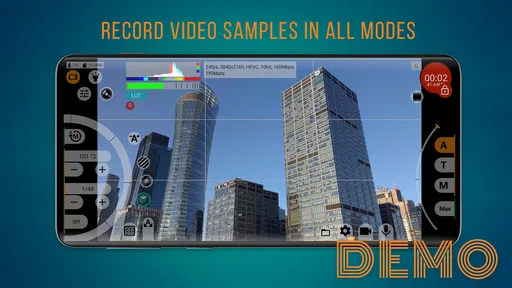
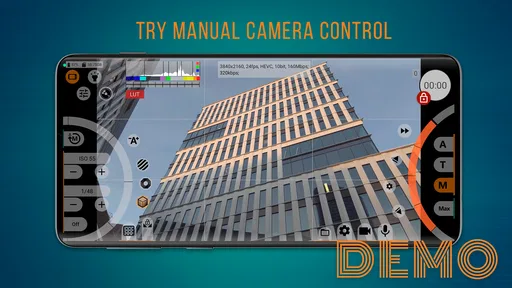
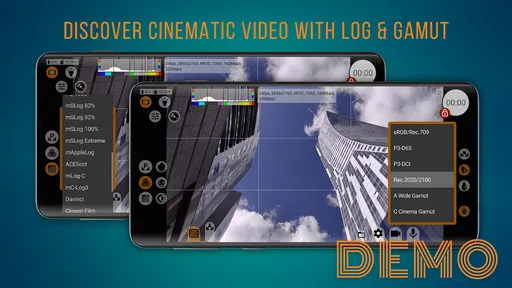
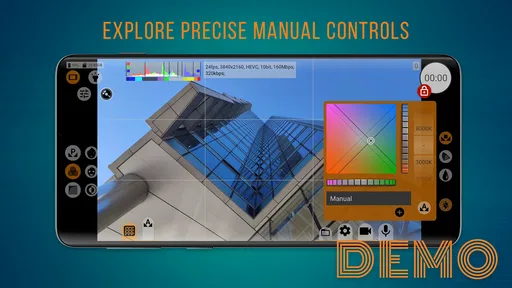
- Manual focus, shutter speed, ISO, and white balance controls
- Supports high-bitrate recording for improved image detail
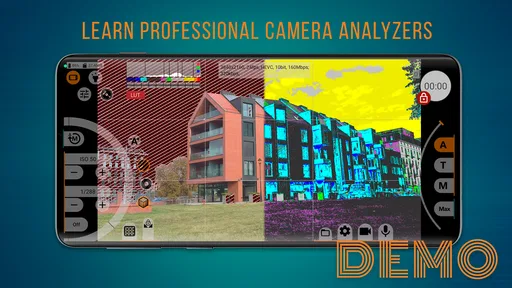
- Useful exposure tools help achieve more consistent footage
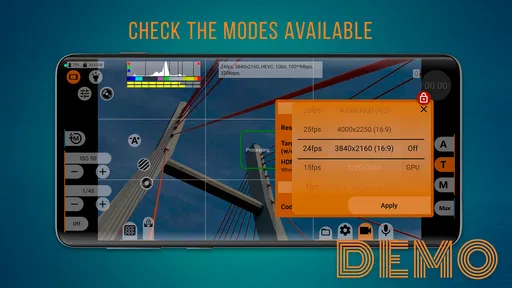
- Offers cinematic frame-rate options for creative projects
- External microphones can improve audio quality on compatible devices
Limitations of mcpro24fps demo - video camera
- Many advanced features are restricted in the demo version
- Performance depends heavily on your phone’s camera hardware
- High-quality recording can quickly consume storage space
- Manual controls may feel overwhelming for casual users
- Some devices may experience overheating during long recordings
Other Releases by Chantal Pro SIA
View All
mcpro24fps manual video camera
Photography4.5
Similar Picks in This Category
View All
PGT: GFX, Launcher & Optimizer
Trilokia Inc.4.5

AusweisApp Bund
Governikus Service GmbH3.7

Cardboard
Google LLC3.2

Gamers GLTool with Game Tuner
Trilokia Inc.4.5

Multi Web Chat - Read Secretly
World Scan & Cleaner3.8

App Cloner Premium & Add-ons
App Listo1.9
Frequently Asked Questions
What is mcpro24fps Demo, and who is it designed for?
mcpro24fps Demo is a limited version of the mcpro24fps professional video camera app for Android devices. It is aimed at users who want more manual control than the standard camera provides, including filmmakers, vloggers, mobile journalists, and photography enthusiasts. The interface is more technical than a typical camera app, so beginners may need time to understand the controls and camera-specific limitations.
Which manual video controls are available in the demo version?
The app is built around professional recording controls rather than automatic shooting. Depending on your phone and Android camera support, you may be able to adjust settings such as frame rate, shutter speed, ISO, focus, white balance, exposure, resolution, and audio options. Availability is not identical on every device, because manufacturers restrict access to certain camera features through the Android camera system.
Are there limitations in the mcpro24fps demo compared with the full version?
Yes. The demo is intended to let users test the application and confirm whether it works properly with their phone before purchasing the complete version. Some functions, recording options, or output capabilities may be restricted, and the demo may include limitations that do not appear in the paid edition. Checking the current Google Play listing is recommended because the exact restrictions can change with updates.
Will mcpro24fps Demo work on every Android phone?
No camera application can guarantee the same performance across all Android models. mcpro24fps depends heavily on the device’s camera hardware, Android version, manufacturer software, and support for Camera2 or related camera features. Before downloading, verify compatibility and test important functions such as manual focus, exposure, frame rates, stabilization, audio recording, and resolution. A powerful phone does not always provide complete camera API access.
Is mcpro24fps Demo suitable for professional video production?
The demo can be useful for evaluating whether your Android phone is capable of a more controlled filmmaking workflow, but it should be treated as a testing tool rather than a complete professional solution. Results depend on the phone, lighting, microphones, storage speed, and supported codecs. Users should test recording reliability, overheating, audio quality, and file compatibility before relying on it for an important production.
